Suunto Run for Beginners: Is It Worth It?
Every stride forward starts with data you can actually trust. When you log miles week after week, guessing your pace or ignoring your recovery metrics leads straight to burnout.
That is why mastering the Suunto Run for Beginners process changes everything. With the right sports watch strapped to your wrist, you track your exact workload and hit personal bests safely.
Getting Started with Your New Suunto Watch
Unboxing your sports watch brings a rush of excitement for the training miles ahead. You peel away the cardboard, lift the sleek tracker from its molded plastic, and realize the real work starts now.
Before you log your first run, you need to power up the device, establish a connection with your smartphone, and input your physical stats. Skipping these setup steps leaves you with inaccurate data and a frustrating experience on the road. Take a few minutes to complete this initial setup correctly, and your watch will reward you with precise metrics every single time you lace up.
Charging and Powering Up the Device
Your new watch arrives with a partially charged battery, but you should always plug it into a power source before starting any updates. Attach the magnetic charging cable to the back of the case. The metal pins on the puck snap directly into the corresponding contact points on the watch. Plug the USB end into a computer port or a standard wall adapter.
Once connected, the screen lights up to show the current battery percentage. Leave the device plugged in until the battery indicator reads one hundred percent. While you wait for the power icon to fill, press and hold the top right button to wake up the system. The screen displays the Suunto logo, followed by a language selection menu. Tap your preferred language on the touchscreen or use the side buttons to highlight your choice.
Pairing Your Phone and App Setup
Your watch relies on your smartphone to download firmware updates and sync your training logs. Grab your phone and open the app store to download the official mobile companion app. Turn on your phone bluetooth settings before opening the application for the first time.
Create a new user account or log in with your existing credentials. The app searches for nearby devices automatically. When your watch model appears on the phone screen, tap it to initiate the pairing sequence. A matching code flashes on your watch display. Confirm this code on your phone to complete the secure connection.
Next, the app prompts you to enter your personal profile details. Input your correct age, biological sex, weight, and height. The software uses these numbers to calculate calorie burn and heart rate zones during your workouts. You should also input your stride length if you know it, though the built-in accelerometer refines this measurement over time during outdoor runs. Save your profile, let the app sync the default sport modes, and your device is ready for the pavement.
Navigating the Watch Screens and Menus
Mastering a new running watch feels daunting when you stare at a blank screen or a flurry of flashing data fields. When you use your device for the first time, you need to know how to transition between screens without breaking your stride.
Your Suunto Run for Beginners journey relies on quick muscle memory so you spend less time fumbling with buttons and more time focused on your pace. The interface combines physical pushers with a responsive glass surface to give you complete control during speed sessions and long endurance efforts.
Understanding Button Functions and Touch Control
Your watch features three physical buttons on the right side alongside a responsive color touchscreen. During a rainy morning or a freezing winter tempo run, your fingers lose fine motor skills, so physical buttons save the day. The top button moves you upward through lists or increases values during setup screens. The bottom button moves you downward or decreases those same values. Press the middle button to select an option, open a highlighted menu, or confirm a setting.
Sweat and heavy rain interfere with capacitive touchscreens, but physical buttons bypass moisture completely. Still, the touchscreen works well when you stand still and want to swipe through daily widgets. Swipe down from the top of the watch face to access shortcuts like the stopwatch, flashlight, or do-not-disturb mode. Swipe up from the bottom to open your main menu, where all settings, training logs, and navigation features live. Tap the screen to select a specific training mode or view detailed metrics for your last interval session.
Customizing Your Home Watch Face
Your primary watch face acts as your command center before every workout. You want a display that delivers critical data at a single glance without forcing you to squint while running fast. Press and hold the middle of your current watch face to open the customization editor. Scroll through the available design layouts using the top and bottom buttons. Pick a clean digital layout if you prefer bold numbers for your pacing and time, or choose an analog look if you like traditional watch hands.
Next, configure the complications or data slots on your chosen screen. Tap individual data fields to swap them out for metrics that matter to you. Place your daily step count in the top corner, your remaining battery percentage in the middle, and your heart rate graph at the bottom. Activity rings around the outer edge show your daily progress toward your movement goals. Save your layout, and your watch greets you with a personalized dashboard every time you check the time.
Tracking Your First Workout on the Road
Your preparation pays off the moment you step outside with your new timepiece. Learning the Suunto Run for Beginners routine requires patience during your first few outdoor excursions. You want reliable data from every single mile, so rushing the initial connection phase creates headaches later.
Finding a Strong Satellite Signal
Step outside into an open area away from tall concrete buildings and dense tree canopies before you start your session. Press the top right button to open the exercise menu, and select the running sport mode from the list. The watch immediately begins searching for GPS satellites to map your route and calculate your speed. Stand completely still while the watch finishes this process.
Moving around while the device searches for signals causes erratic tracking and ruins your post-run map. Watch the small arc at the top of the screen turn from gray to solid green. Once the icon turns green and the watch emits a subtle beep, your location is locked in. Do not skip this waiting period, because a rushed start leads to jagged distance measurements and incorrect pace readings.
Reading Your Data While You Move
Your screen comes alive with vital metrics as soon as you press the top button to begin recording. Glance down at your wrist to monitor your current pace, total distance covered, elapsed time, and real-time heart rate.
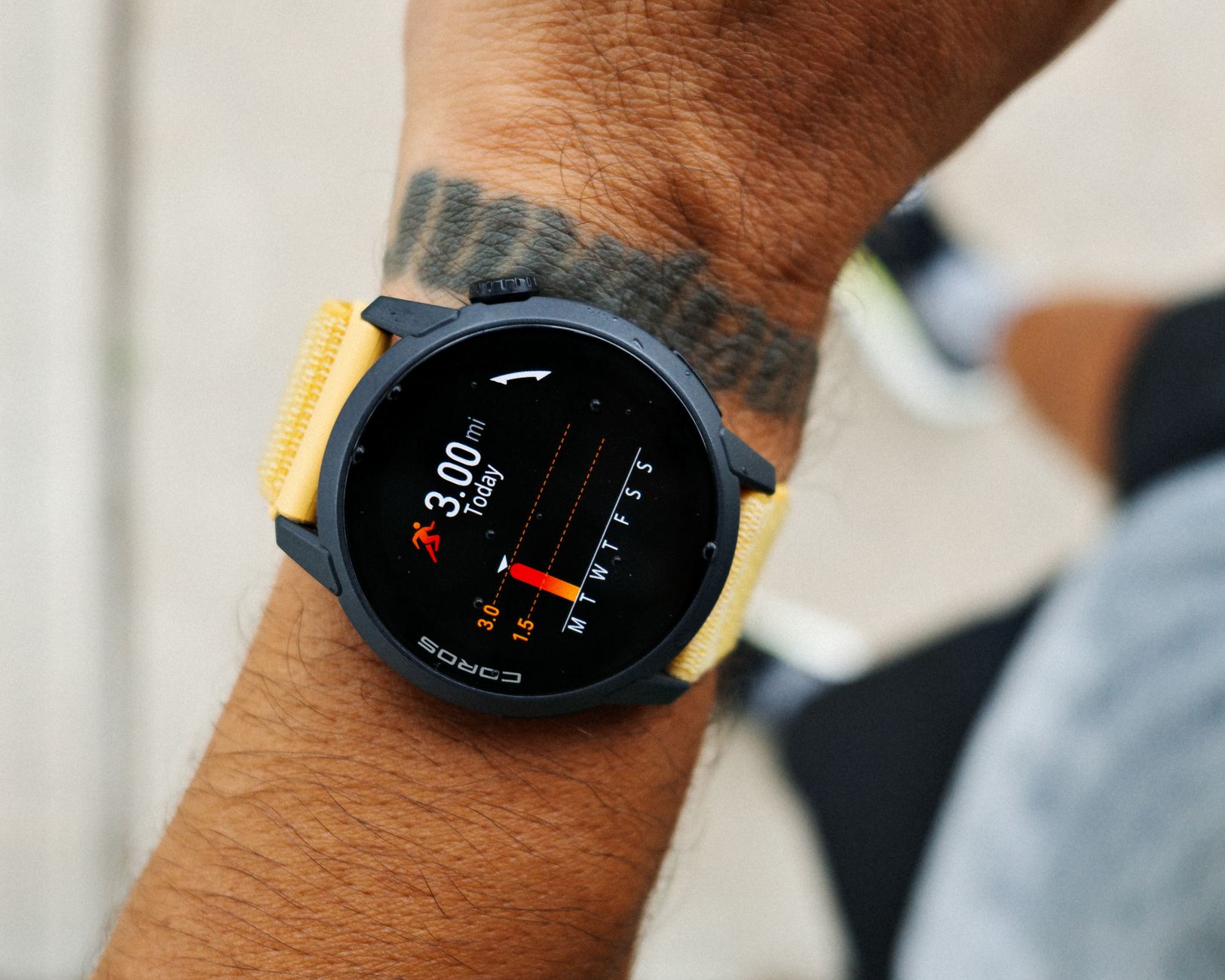
Photo by Eddie O.
Keep your eyes on the road ahead and only glance at your watch with quick, deliberate checks. Your current pace tells you if you are running too fast during your warm-up miles.
Elapsed time helps you manage your overall energy expenditure during long endurance blocks. Meanwhile, your heart rate data keeps you honest so you don’t push into a red zone too early. Tap the screen or press the side buttons if you want to cycle through different data screens during your run. Pay attention to how your body feels compared to the numbers on your wrist.
Reviewing Your Run After You Cross the Finish Line
Your run finishes the second you stop the timer, but understanding your training session requires a close look at the data on your wrist and phone.
When you use your Suunto Run for Beginners setup, post-run analysis transforms raw numbers into actionable insights for your next outing. You stop guessing why your legs felt heavy during the final mile and start seeing the exact story your physiology tells. Saving your workout correctly ensures that every drop of sweat counts toward your long-term running goals.
Checking Splits and Pace Graphs
Your watch records every single mile or kilometer as you check off the distance. After you press stop, scroll down through the summary screen to inspect your split times. You spot whether you started too fast or maintained a disciplined cadence throughout the effort.
- Fast early miles often lead to a painful slowdown near the end of a long run.
- Even splits build aerobic endurance and protect your muscles from excessive fatigue.
- Consistent pacing graphs reveal your ability to manage effort over rolling hills or flat pavement.
Open the companion application on your smartphone to view these metrics on a larger screen. The app plots your pace against elevation changes so you see how hills impacted your speed. You learn to connect physical sensations during the run with the visual data lines on your phone. Adjust your future training targets based on these trends so you stop making the same pacing mistakes.
Monitoring Recovery and Sleep Tracking
Your body rebuilds itself during the hours after your workout finishes. The optical sensor on the back of your watch tracks your heart rate variability and resting heart rate around the clock. When you wake up in the morning, open the recovery widget to check your daily resource levels.
A high recovery score tells you that your nervous system absorbed yesterday’s stress effectively. You can push hard during today’s interval session without risking burnout. Conversely, a low score warns you that your body needs extra rest, so you should swap a hard workout for an easy recovery jog.
Sleep tracking measures your deep sleep, light sleep, and total resting duration every night. Poor sleep sabotages your glycogen stores and slows muscle repair after tough efforts. Pay close attention to these nocturnal patterns whenever you feel sluggish during daytime runs. Your watch gives you the objective truth about your rest, helping you balance hard work with necessary downtime.
Handy Settings and Battery Tips for Daily Training
Your training watch performs best when it works quietly in the background without pulling your attention away from the road. Dialing in your notifications, managing screen brightness, and selecting the right power profiles keep your device ready for high mileage. A clean setup lets you focus entirely on your cadence and breathing pattern instead of flashing lights on your wrist.
Managing Notifications Without Getting Distracted
Constant buzzing interrupts your flow state during a hard tempo run or a long Sunday endurance session. Turn off phone calls and text alerts directly in your companion app to reclaim your mental focus. When you disable phone notifications, your display remains dark until you deliberately check your metrics.
Silence the watch using the quick settings menu before you step out the door. Swipe down from the top of the main screen and tap the bell icon to engage silent mode. Alternatively, open your phone application settings, navigate to the device profile, and toggle off smart notifications entirely.
- Your running form improves because you stop looking down at incoming text messages.
- Your breathing stays relaxed when your wrist doesn’t vibrate mid-stride.
- Your battery lasts longer because the Bluetooth radio receives fewer data packets from your phone.
Focusing on the physical road ahead requires total concentration. Eliminating digital interruptions keeps your mind locked into your pacing strategy. You notice small changes in your stride, and you react faster to fatigue when your screen stays quiet.
Choosing Power Modes for Long Runs
Weekend long runs push your battery limits, especially when you track multi-hour adventures with full Global Positioning System accuracy. Adjusting your location settings prevents your watch from dying halfway through a crucial training session.
Standard positioning tracks your coordinates every second to give you the most precise route mapping possible. However, changing this setting to a lower accuracy tier extends battery life significantly for marathon training blocks.
- Open the main settings menu on your watch before your run begins.
- Scroll down to the training or navigation options and select battery modes.
- Switch from the high-accuracy profile to a power-saving profile that samples your location less frequently.
Lowering the satellite ping frequency still records your total distance accurately while conserving milliamps. You also extend battery longevity by dimming the backlight and turning off wrist heart rate monitoring if you wear a chest strap. These small adjustments guarantee your watch survives even the longest training weeks without needing an emergency recharge.
Conclusion
Your running journey improves the moment you stop guessing and start relying on objective data. The Suunto Run for Beginners approach removes the mystery from pacing, recovery, and daily mileage. When you trust your watch, you avoid the trap of overtraining and build aerobic fitness with confidence.
Consistency beats raw talent every single time. Lace up your shoes, keep an eye on your splits, and let your metrics guide you toward your next personal record.